Activities
Importing Activities
Import activities from a CSV or Excel file. Map your columns, preview the data, and bring in your existing records.
Last updated August 31, 2026
If you're switching from another tool or have activity records in a spreadsheet, you can import them directly into Homeschool Fox.
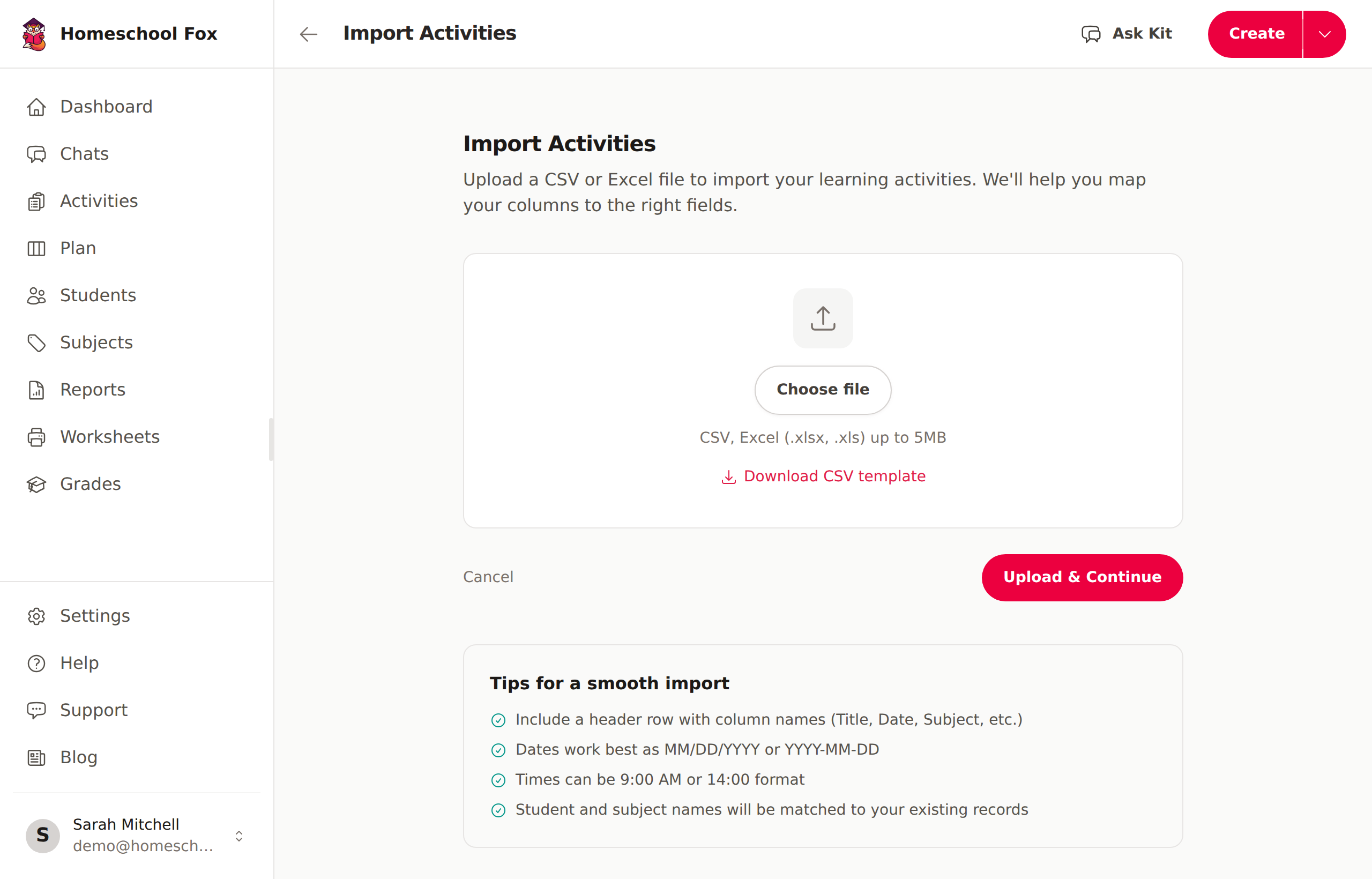
Supported file formats
- CSV (.csv) — comma-separated values
- Excel (.xlsx, .xls) — Microsoft Excel spreadsheets
Maximum file size is 5 MB.
How to import
- Go to Activities and click the Import button, or visit Settings > Other > Import activities
- Upload your file
- Map your columns to the right fields
- Preview and review the data
- Confirm the import
Preparing your file
Your file should have a header row as the first row. Homeschool Fox will try to auto-detect which columns match which fields based on the header names.
Recommended columns
| Column | Required? | Notes |
|---|---|---|
| Title | Yes | The name of the activity or lesson |
| Date | Yes | The date of the activity (MM/DD/YYYY or YYYY-MM-DD) |
| Start Time | Recommended | When the activity started (e.g., 9:00 AM) |
| End Time | Recommended | When it ended — or use a Duration column instead |
| Subject | Recommended | Matched to your existing subjects by name |
| Student | Optional | Student name(s), or assign all rows to specific students during import |
| Description | Optional | Notes or details about the activity |
Date and time formats
Homeschool Fox recognizes common formats:
- Dates:
01/15/2026,2026-01-15,January 15, 2026,Jan 15, 2026 - Times:
9:00 AM,09:00,2:30 PM,14:30 - Combined:
2026-01-15 09:00in a single column
You can have date and time in the same column or in separate columns — just map them accordingly.
Duration instead of end time
If your spreadsheet has a duration column instead of an end time, map it to Duration (minutes). Homeschool Fox will calculate the end time automatically.
Durations can be:
- Minutes: 30, 90
- Hours with decimal: 1.5 (interpreted as 1 hour 30 minutes)
- Hour:minute format: 1:30
Column mapping
After uploading, you'll see a preview of your data with dropdowns above each column. Homeschool Fox auto-detects common header names, but you can adjust the mapping manually.
If a column doesn't match any field, set it to Skip / Ignore.
Student assignment
You have two options for assigning students:
- Assign all rows to specific students — select which students these activities belong to. Good when all activities are for the same child(ren).
- Map from a column — if your spreadsheet has a student name column, Homeschool Fox will match names to your existing students. Comma-separated names (e.g., "Alice, Bob") are supported for group activities.
Subject matching
Subject names are matched case-insensitively to your existing subjects. If your file contains subjects that don't exist yet, Homeschool Fox will offer to create them automatically during the preview step.
Preview and validation
Before importing, you'll see a summary of:
- How many rows are ready to import
- Any rows with errors (missing title, unparseable dates, etc.)
- New subjects that will be created
- Student names that couldn't be matched
Rows with errors are skipped during import. Activities missing required fields (subject, students, or dates) are imported as drafts so you can complete them later.
What school years can I import?
You can import activities dated in any school year — past, current, or future. They'll all save and show up in your activity list.
However, only activities dated within your current school year will count toward a student's goal and progress totals. Homeschool Fox tracks progress against the current school year only; we don't currently support backfilling prior years into older goals.
If your file contains activities outside your current school year, the preview step will flag them with a warning so you know exactly what will and won't be counted. You can choose to:
- Import them anyway — they'll be in your activity list for reference, just not in your progress totals
- Remove them from your file — and re-upload if you only want activities that contribute to this year's goals
Undoing an import
If something went wrong, you can undo an entire import from the results page. Click Undo import to delete all activities that were created. This action is permanent.
Tips
- Start with a small test file (5-10 rows) to verify your column mapping before importing a large dataset
- Make sure your students and subjects are set up before importing — the importer matches by name
- Activities imported without a subject or students are saved as drafts